
Take a look at the FAQs below to see if they help with your issue, otherwise contact us via the Support Centre for any further help.
Viewing
To view podcasts for courses you are enrolled on, simply visit the Podcast Video Portal and login. On the left menu, you will find a list of all of your courses which have podcasts available for them.
If you do not see a course or podcast you expect, this could be for a number of reasons. In some cases, lecturers choose to hold podcasts for editing before they are published – which means you will only be able to see the podcast once the lecturer publishes it. Some lecturers may also choose to opt-out of lecture recordings, which means podcasts may not be made.
If podcasts are not held for editing by lecturers, they will automatically publish once they have finished processing. This usually occurs within a couple of hours after the lecture ends but sometimes there can be a delay, and they can take up to 24 hours to publish.
If after 24 hours, a podcast you expect to see still isn’t available, contact the Support Centre for help.
If you are enrolled on a course but cannot see it in the list of podcasts on the Video Portal, these are the most likely reasons:
- The lecturer has opted-out of having recordings made so they are unavailable to view
- The lectures take place in a location which is not podcast-enabled
- The recordings are held for editing and will not be available until the lecturer publishes them
If you have recently changed courses this should update automatically (and fairly quickly), but log out and back into the Video Portal to reset your enrolments. If you still have issues, you should raise a support ticket.
If you notice a problem with one of the podcasts (such as black video/no audio) this could be for a number of reasons, such as technical failure or a microphone being muted. We do monitor the system as best we can to try and prevent such issues, but sometimes they do occur, and unfortunately it is not possible to retrospectively fix them.
You can report issues to us podcasting@manchester.ac.uk.
As part of our ongoing commitment to support students with disabilities, a special adaptation has been made to the lecture capture service.
If you are a student registered with the DASS Office and they have specified that you need recorded lectures as part of your support plan, you will have access to all your lectures in equipped rooms, even if the lecture has been opted-out of the recording process.
In order to see podcasts, you do not need to take any extra steps; simply visit the Video Portal, and all podcasts will appear for you as usual.
For further information and advice relating to podcasts as a form of disability support, please contact the DASS Office.
Subtitles are processed for all lecture recordings by default. If you find a podcast does not have subtitles available for it, you can request subtitles by clicking the Options button below the video and choosing the ‘subtitle request’ button, as shown below.
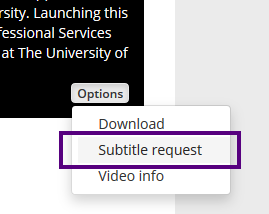
Subtitles will become available after they have finished processing.
An automated speech-to-text service is used to produce subtitles, and accuracy can vary depending upon the quality of the audio track.
If there is an issue with the produced subtitles, contact us to let us know.
Downloading
You can download podcasts to watch on your own device by pressing the Options button under the video and choosing Download. Videos will be saved as MP4 files.
Downloaded recordings are for your own personal use only – you are not permitted to share the recordings with anyone else, post them online or distribute them in any way. Students found to be in infringement of this may be subject to disciplinary proceedings.
You can download the subtitle file for a video (in .vtt format) and the transcription file (in .txt format) by following the instructions below.
You can download the existing subtitle file for a video on the Video Portal or embedded player by clicking on the download icon on the toolbar and choosing the download subtitle or transcript options from there, as highlighted in the image below.
download subtitle and transcription buttons
Uploading
Students can upload audio or video files to the Video Portal and share the link to the published video (depending on the visibility setting) or embed it into Canvas to share it with others.
Upload videos
Log into the My Videos tab of the Video Portal.
The following video formats are supported: MP4, AVI, MOV, WMV and M4V – up to 5GB in size. When producing videos, it is recommended to keep settings aimed at 720p – which is what the Video Portal will encode to, and this should help keep file sizes reasonable also.
Audio files must be saved as an MP3 file (i.e. with a .mp3 file extension). If an audio file is saved with a video extension, such as .mp4 for example, it will fail to process correctly.
Ensure that you select the correct visibility option before uploading. If the upload is for assignment purposes, it is usually advised to set it to Private (only me) and then share the direct link to the video once processed (explained in the following FAQ section below).
During processing, subtitles are automatically produced (unless the option is disabled during upload).
You will receive an email when the video has been processed and published.
More information on uploading can be found on our uploading guide.
If you are a Postgraduate student, you may see courses in your list of areas to upload instead of “student videos” but it is not recommended that you select a course, as videos added to a course area are visible to all staff/students on the course. Instead, choose a Faculty or School area and set the video to private (“only me”).
Sharing with other students
If you want to share your uploaded video with students in your Canvas course, you need to copy the embed code for your video – which can be found by going to Options > Video Info. This code needs to be copied and pasted into Canvas (for example in a Discussion Board) and the video will then be visible there.
Sharing with staff
When you have uploaded a video as private (i.e. visible only to yourself) but it needs to be shared with staff/others – you can use the direct link to the video, found in the embed code by clicking Options > Video Info under the video in the Video Portal. In the code that is shown, you will find a link which looks like:
https://video.manchester.ac.uk/embedded/00000000-1234-c25b-0000-01867ecab7e0
Copy and provide this link to whoever needs to view the video. Note that this link will allow the video to be visible to anyone who has it, so only share with those necessary.
You can edit or delete an uploaded video by visiting the My Videos tab and clicking the ‘Manage videos’ button. You will see a list of the videos you have uploaded – you can press delete to remove a video, or the details button to change things like the title, description, or visibility, for example.
If you have any issues, create a support ticket for help.
Still having issues?
If you need to report a problem or get further help, contact us via podcasting@manchester.ac.uk.